Showing posts with label Linux Unix Red Hat Fedora Network. Show all posts

December 6, 2006

Some basic Unix Linux network commands. Glossary and Troubleshooting

Troubleshooting or just need a quick refresher on some basic and advanced Unix Linux network related commands?

ifconfig - configure a network interface (setup)
route - show / manipulate the IP routing table
ping, ping6 - send ICMP ECHO_REQUEST to network hosts
netstat
- Print network connections, routing tables, interface statistics, masquerade connections, and multicast memberships

tcpdump - dump traffic on a network
tcpslice - extract pieces of and/or glue together tcpdump files

traceroute - print the route packets trace to network host
tracepath, tracepath6 - traces path to a network host discovering MTU along this path
iwconfig - configure a wireless network interface
iwlist - Get more detailed wireless information from a wireless interface
wpa_supplicant - Wi-Fi Protected Access client and IEEE 802.1X supplicant
wpa_supplicant.conf [wpa_supplicant] - configuration file for wpa_supplicant
ipcalc - perform simple manipulation of IP addresses
nc - arbitrary TCP and UDP connections and listens
snort - open source network intrusion detection system
ettercap - A multipurpose sniffer/content filter for man in the middle attacks
ethereal - Interactively dump and analyze network traffic
December 5, 2006

Simple network scripts

Changing your network settings can be performed with either the system-config-network command or by editing the /etc/sysconfig/network-scripts/ifcfg-ethX file.

However, if you are like me, and need to change the ip address sometimes on the fly, you will not want to a simple script to perform the task instead. A simple shell script will do the job nicely. Perl or python will also do the job. I prefer writing small scripts in Perl, so here is a simple network script you can try.

Backup your resolv.conf file before running the script or add this line to your script.
The # represents a line with comments. This line is ignored by Perl when reading the code.

system("cp /etc/resolv.conf /etc/resolv.conf.org");


Let's call the script network_one.pl
The .pl stands for Perl executable.

#!/usr/bin/perl -w
# network_one.pl

system("ifconfig eth0 down");
system("ifconfig eth0 192.168.0.88 netmask 255.255.255.0");
system("route add default gw 192.168.0.1");

# Quick and dirty edit of your nameserver settings.
system("cp /etc/resolv.conf /etc/resolv.conf.org");
system("echo "nameserver 192.168.0.2 > /etc/resolv.conf");

# The echo command with the >, will overwrite your resolv.conf file.
# Check that your host can reach the default gateway. Two packets should do.
#

system("ping -c 2 192.168.0.1");

# Check that the DNS is resolving addresses.
system("dig -x somedomain");

If your dig -x somedomain executes successfully, you should be ready to network.

Next, I just copy this file and name it to network_two.pl, and edit the values for the network.

This way, you can quickly switch between numerous different networks with just calling your scripts with Perl.

# perl network_one.pl
or
# perl network_two.pl
etc ..


This is just a very simple script. A lot more sophistication can be added to the scripts of course.

November 29, 2006

Configuring Network Red Hat Fedora using a GUI


The second way is to use the graphical user interface.
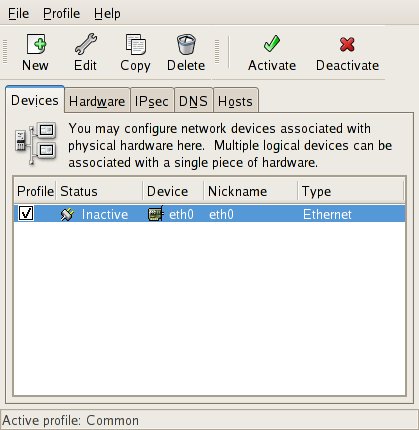
# system-config-network
( Remember to use su - , or you might get a display error ) Like this
Xlib: connection to ":0.0" refused by server
Xlib: No protocol specified

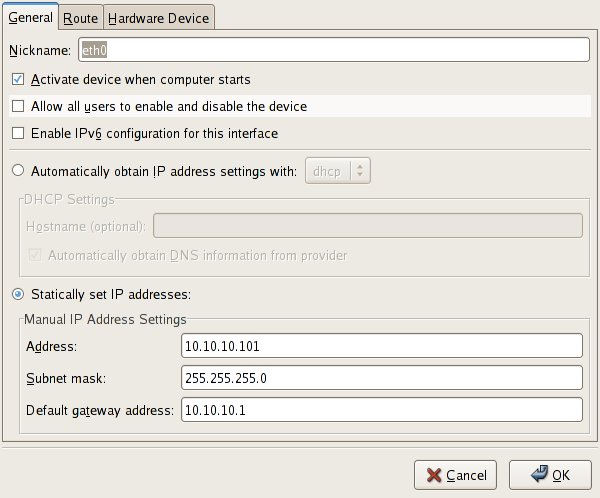
Highlight the line where you network card is presented and click on the EDIT button.
Enter the values for you network in the fields as on the picture on the top right.
Choose a ip address that you can use with your router. If the router is configured to controll 192.168.x.x something, you will have to use a 192.168.x.x address, 10.10.100.x a 10.10.100 address and so on.

Don't forget to activate and save!
That's it. Try and reboot your machine.
You can also view the ifcfg-eth0 file that was edited by the system-config-network script.
# cat /etc/sysconfig/network-scripts/ifcfg-eth0


Network IP address configuration Red Hat Fedora


Rebooted your server/workstation, only to notice that your network configuration is gone?
To make permanent network entries in Fedora or Red Hat and many other Linux distributions, you need to edit your ifcfg file. The ifcfg file should be located in /etc/sysconfig/network-scripts and named after your network cards interface name. Usually eth0 or eth1.

Two common ways to change and make permanent tcp/ip configurations.
  1. As user root ( symbolized with # ) change your directory to /etc/sysconfig/network-scripts
  2. # cd /etc/sysconfig/network-scripts
Use your text editor of choice. vi, nano, ed, emacs or perphaps pico. Oh, if you happen to run ed, type Q to get out. :-)

# vi /etc/sysconfig/network-scripts/ifcfg-eth0
DEVICE=eth0
BOOTPROTO=none
HWADDR=00:15:C5:08:3F:D5
ONBOOT=yes
TYPE=Ethernet
USERCTL=no
IPV6INIT=no
PEERDNS=yes
NETMASK=255.255.255.0
IPADDR=10.10.100.50
GATEWAY=10.10.100.1

This is what your ifcfg-eth0 or ifcfg-eth1 could look like after you have edit it.
NETMASK, usually 255.255.255.0 if you have want a usual /24 net.
IPADDR= Normally an 192.168.x.x or 10.10.10.x or 172.x.x.x address. Check your router/access point for details on what net it is configured to service.
GATEWAY= This should be the ip address of your router or access point.


April 5, 2006

Unix Linux Network Configuration and Troubleshooting

Configure your Linux Network example. Change IP address, netmask and
default route (your gateway) to your own settings. If the ip addresses
are dynamically distributed with the DHCP protocol, you should only need
to run.

# dhclient eth0 (or the name of your nic)

If static, read here.
$ su -
Change to root account

The # is the symbol for root user

# ifconfig eth0 192.168.0.1 netmask 255.255.255.0 (ip address and netmask)
# route add default gw 192.168.0.3 (default router setting)

# ping 192.168.0.3 (check if you can connect to your router)
If everything works ok, you should get echo replies.

[salt@mimir ~]$ ping 192.168.0.3
PING 192.168.0.3 (192.168.0.3) 56(84) bytes of data.
64 bytes from 192.168.0.3: icmp_seq=0 ttl=255 time=3.26 ms


Troubleshooting a Linux Network LAN

# ifconfig eth0 down (take down network interface eth0)
# ifconfig eth0 up (take up network interface eth0)
# ping localhost
# dmesg | grep eth0 (check if eth0 was starting ok at boot up)
# tail -f /var/log/messages (tail messages while troubleshooting)
# check your cables (Don't laugh, this is more common than you
think)

In a production network, check with the administrator if there is any Access List on MAC
addresses in the switch.

Check if you need to have an entry in the networks DHCP servers configuration.

If wireless, check your WEP, WPA, WPA2, ESSID values.

# iwcondfig wlan0 essid (value)